Changelog

Follow new updates and improvements to voiceaiwrapper.

AI Agent Builder

What's new

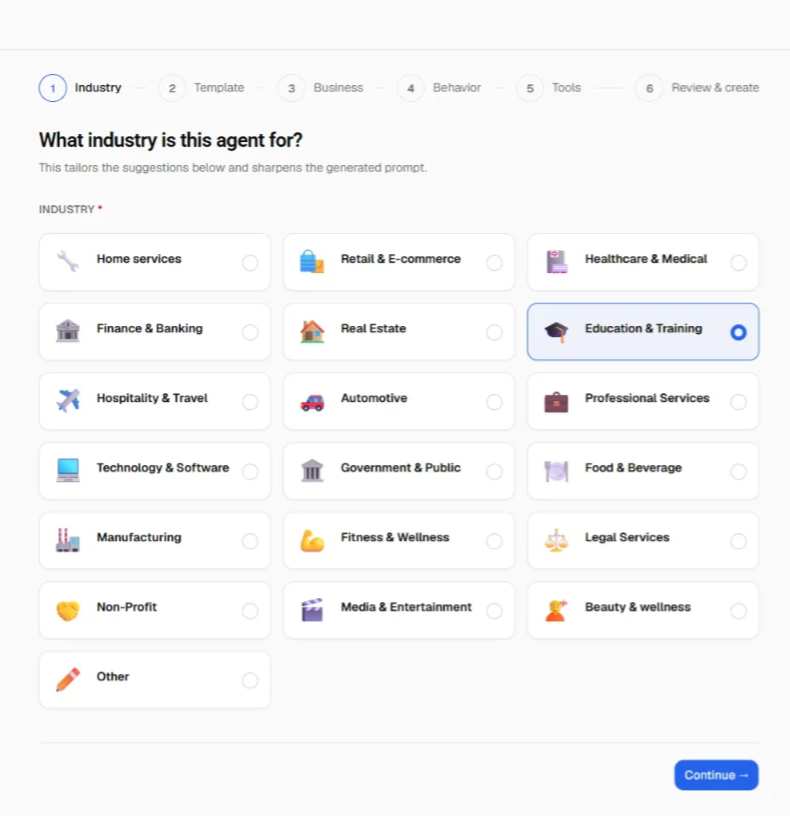
You can now create a complete, ready-to-call voice agent from a guided wizard instead of configuring one by hand. The AI Agent Builder walks you through five short steps and creates the agent directly in your provider account (Vapi, Retell, or ElevenLabs) with the voice, greeting, system prompt, and tools already set up.

How it works

  1. Pick a template: choose your industry and use case, or start blank.
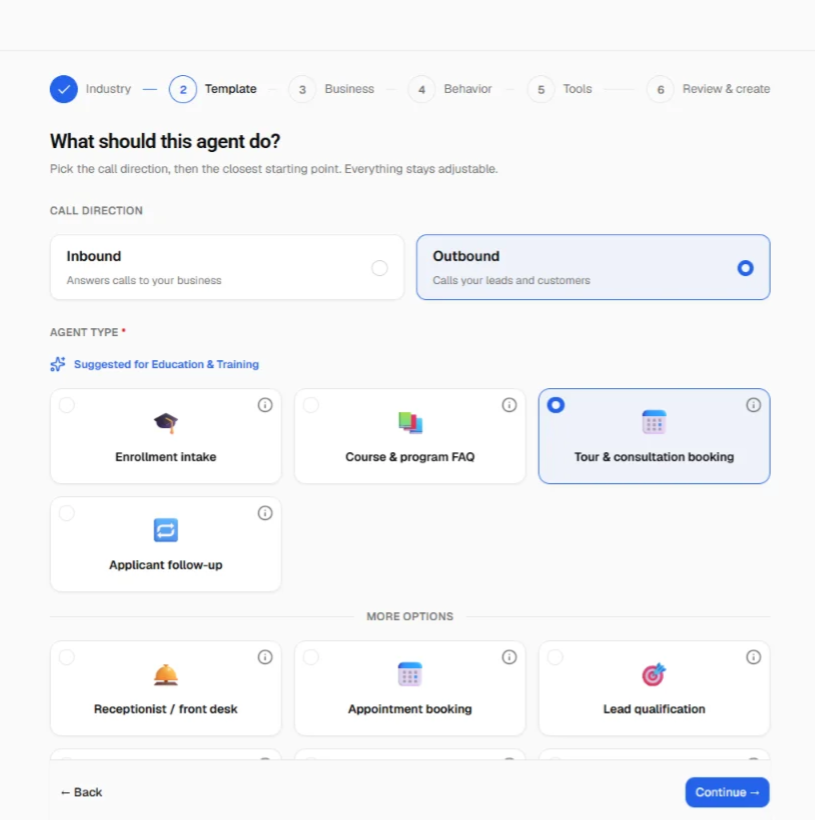
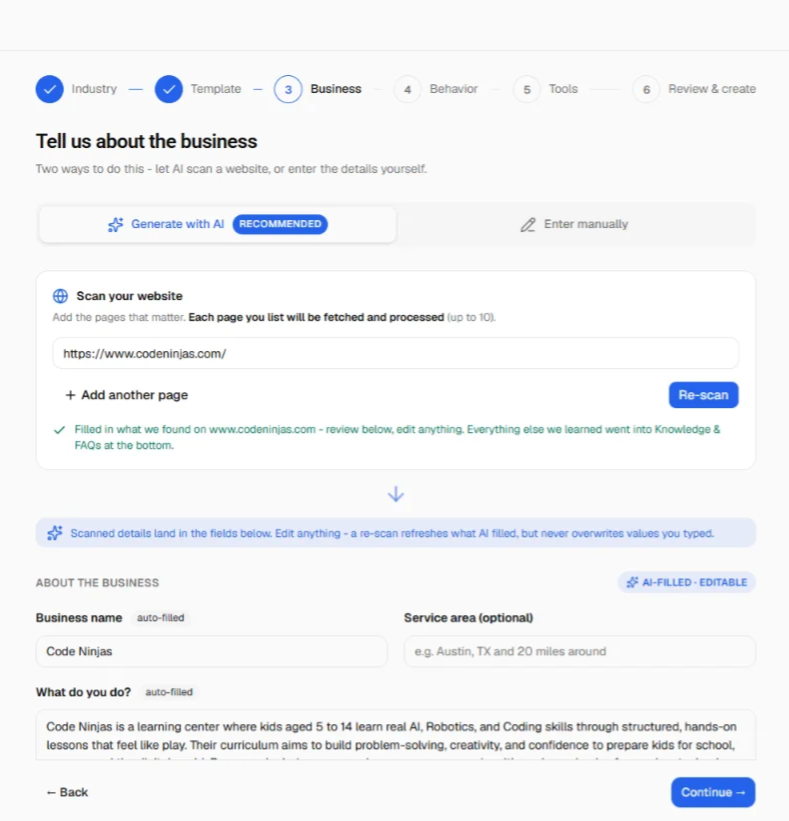
  1. Describe the business: enter details manually, or paste your website URL and let the builder scan it and pre-fill the form for you.
  1. Set behaviour: language, tone, and what the agent should accomplish on each call.

  2. Add tools: optional integrations the agent can use during calls.

  3. Review and create: the AI generates the greeting and full system prompt; edit anything before creating. The agent appears on your Agents page and in your provider dashboard.

Tools

Agents created with the builder can be set up with:

  • Appointment booking (Cal.com): checks availability first and books only a slot the caller chose; phone numbers and emails are confirmed before booking.

  • Transfer to a human: hands the call to a phone number you set.

  • Lead capture: sends the caller's name, contact details, and reason for calling to your webhook.

Also in the client portal

You can let clients build their own agents. A new "Can create agents" toggle in each workspace's access settings enables the builder inside the client portal: the same guided flow, with no provider names or provider settings visible to the client. Agents a client creates show up in their workspace immediately.
New

Reorder the whole client portal sidebar

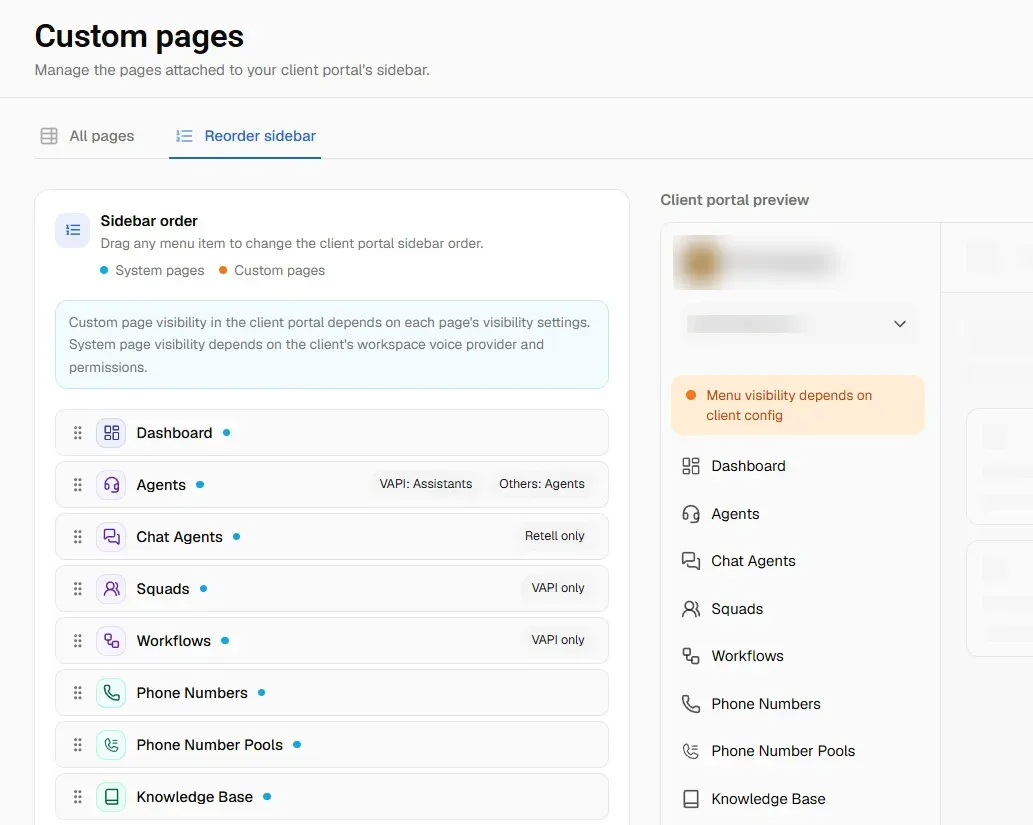
You can now set the order of every item in your client portal sidebar, not just the custom pages you added. Drag them into the order you want and watch the portal update beside you.

What's new

  • One list for everything. Built-in pages and your own custom pages sit in the same list, colour coded so you can tell which is which.

  • A live preview. A Client portal preview sits next to the list and reorders as you drag.

  • Badges tell you where each page appears. Some pages exist only for certain voice providers, and a few are named differently depending on the provider. The list shows this, so you are not ordering something a client will never see.

  • "Reset to default order" puts everything back if you change your mind.

You will find it under Configuration → Client Portal → Custom Pages → Reorder sidebar. The All pages tab beside it lists every page with its type, path, languages, and who can see it.

The preview shows the full order with every page in it. What a client actually sees still depends on their workspace voice provider and permissions, and custom pages follow the visibility you set on each one

New

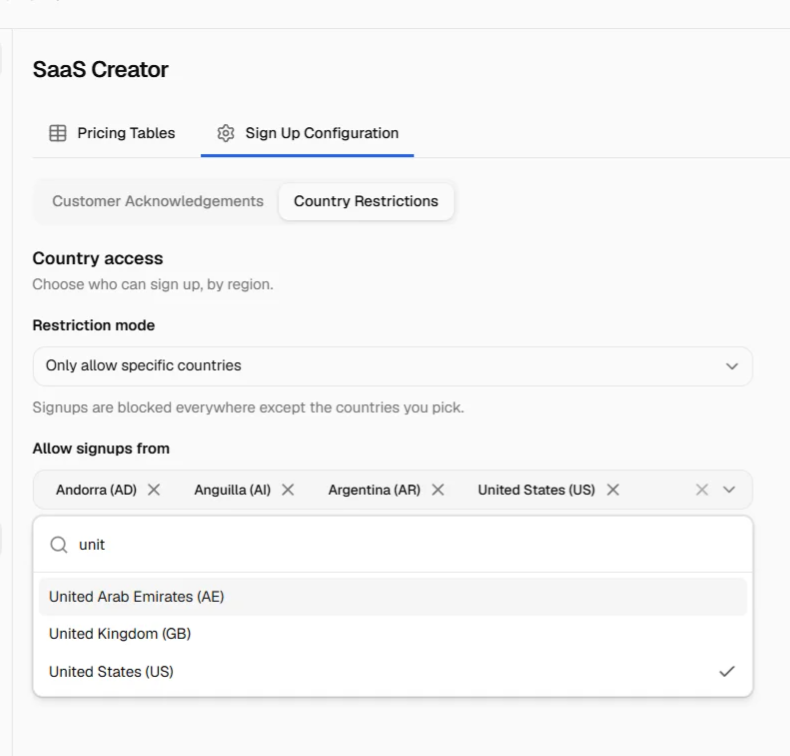
Restrict signups by country (SaaS Creator)

You can now choose which countries your customers are allowed to sign up from. Pick the countries you want to allow, the ones you want to block, or leave signups open to everyone.

What's new

  • Three modes. Allow all countries, Only allow specific countries, or Block specific countries. Signups are open to everyone until you change it.

  • Pick countries by name. Search the list and add as many as you need. Each one shows its country code so there is no guessing between similar names.

  • Blocked visitors get a clear message on your signup page telling them to contact support, rather than a failed signup with no explanation.

You will find it under SaaS Creator → Sign Up Configuration → Country Restrictions.

New

Earlier updates