April 2nd, 2026

Smart Do Not Call (Smart DNC) is now available for outbound campaigns. When a lead says they don't want to be called again, the campaign detects it and marks that lead so it is excluded from future outreach automatically.
After each call ends, your agent reports whether the caller asked not to be contacted again. The product reads that field, and if it is set to true, marks the lead as DNC. That lead will be skipped in future campaign runs.
No changes to calling logic are needed on your end — the setup is entirely on the agent side.

Vapi, Retell, ElevenLabs, Bolna
Step 1 — Add a post-call field to your agent
Add a boolean field named caller_requested_do_not_call to your agent's post-call analysis. Where you add it depends on your provider:
Field details to use:
Name / Identifier: caller_requested_do_not_call
Type: boolean
Description: Whether user asked not to be called again
For Bolna, you also need two pre-defined answers:
true — user explicitly asks not to be contacted again (e.g. "don't call again", "stop calling", "remove me")
false — user does not express any request to stop contact
Step 2 — Update your agent prompt
Add instructions so the agent recognises do-not-call intent and responds correctly. Example:
"If the caller says they do not want to be called again, asks to be removed, or asks you to stop calling, respond respectfully, confirm you will honor their request, and end the conversation without pushback. Treat phrases like 'don't call me,' 'remove me,' and 'stop calling' as explicit do-not-call requests."
Campaign Settings → outbound campaign → Smart Do Not Call → Configure. The Configure dialog shows the exact field name, type, description, and per-provider setup steps with copy buttons.
April 2nd, 2026
New

Ultravox joins Vapi, Retell, ElevenLabs, and Bolna as a supported voice provider. Here is what it covers, how it differs, and what it does not do yet.

Connect
Go to Voice Providers, add your Ultravox API key, and use the webhook URL we provide. Ultravox sends call events to that endpoint — it needs to be set correctly for statuses, transcripts, and recordings to appear in the app.
Agents, knowledge bases, and tools
Your Ultravox agents, corpora, and tools are accessible from the app and can be selected when setting up campaigns or client access.
Phone number pools
Pools work with Twilio, Telnyx, and Plivo numbers. Add one or more E.164 numbers (e.g. +15551234567) under a pool, then assign the pool to a campaign.

Outbound campaigns
Ultravox supports outbound campaigns only. When you create a campaign, the Inbound option is disabled. Campaign settings include:
Which Ultravox agent to use
Telephony provider: Twilio, Telnyx, or Plivo — this must already be connected to your Ultravox account
Caller ID: an E.164 number (e.g. +15551234567) that must exist in that telephony account and be configured for outbound use
Call logs
Calls show up in the call log with status, duration, transcript/summary (when available from Ultravox), and a recording link where applicable.

Dashboard
The provider dashboard shows call volume, duration, call outcomes, and leads over your selected date range.
March 30th, 2026
New

All forwarded webhooks from Vapi, Retell, ElevenLabs, Bolna, and other providers now include a _campaign_metadata object with campaign details.
Fields included:
campaign_id — Unique identifier for the campaign
campaign_name — Display name of the campaign
type — Campaign type (e.g., OUTBOUND)
status — Current campaign status (e.g., ACTIVE)
tenant_id — Tenant/Org identifier
voice_provider_id — Voice provider/Pod identifier
assigned_client — Object containing:
id — Client identifier
name — Client display name
Example:
{
"_campaign_metadata": {
"campaign_id": "Vm9pY2VDYW1wYWlnblR5cGXXXXXXXXX==",
"campaign_name": "Sample Campaign",
"type": "OUTBOUND",
"status": "ACTIVE",
"tenant_id": "VGVuYW50VHlwZTXXXXXX",
"voice_provider_id": "VGVuYW50Vm9pY2VQcm92aWRlclR5XXXXXXXXX==",
"assigned_client": {
"id": "Q2xpZW50VHlwZTpXXXXXXX",
"name": "Client A"
}
}
}
This metadata is available in all webhook events forwarded from Vapi, Retell, ElevenLabs & Bolna using "Outgoing Webhook / Webhook Forwarding" configuration in campaign settings, and can be used to identify and filter events by campaign.
Campaigns using Bolna can now configure a custom analytics key name to determine call success. The system reads the success value from Bolna's Custom Analytics (custom extractions) using the configured key name and matches it against your success values to calculate campaign conversion metrics.
To configure:
Enable "Call Success Metric" in campaign settings
Enter the custom analytics key name that contains the success value in your Bolna agent's custom extractions output
Add the success values to match against (e.g., "success", "completed")
The key name lookup is case-insensitive, and the system will count calls as successful when the extracted value matches any of your configured success values.
March 30th, 2026
New

We've added a text-based chat widget powered by VAPI to web widgets in inbound campaigns. This feature is now available for VAPI voice pods.
You can configure chat and voice simultaneously (both enabled), or choose either chat-only or voice-only modes. Visitors can chat with your AI agent directly on your website without voice calls. For VAPI, the same assistant can be used for both voice and chat; you can set a dedicated chat assistant in widget settings or leave it to fall back to the voice assistant.

Backend-proxied messaging — Create session, send messages, and end session via our API; the VAPI private key stays on the server
Customizable appearance — Match your brand colors, logo, and styling
Connection status indicator — Visual indicator shows when connected
Manual end — End chats anytime with the "End" button
Auto-disconnect — Sessions automatically end after inactivity (default: 3 minutes, configurable 1–60 minutes)
Minimize widget bubble — Minimize the widget to a small bubble while keeping it accessible
Session lifecycle — Session ends when the visitor closes the tab, switches away (visibility hidden), or collapses the widget

Chat sessions are tracked and billed when VAPI sends session lifecycle events to your assistant webhook (the same URL used for voice). In the VAPI assistant's server messages, include the session.created and session.updated webhook events. Without these, chat sessions will not be logged or billed.
session.created — Creates a chat interaction log and marks the session active.
session.updated (status completed) — Finalises billing, updates the log with cost and equivalent minutes, and marks the session ended. Duplicate completion events are ignored.
Chat interactions are converted to equivalent minutes based on your subscription's chat-to-minute conversion rate.
Billing follows the same system as voice calls, with chats converted to minutes for consistent tracking. Chat must be enabled in your subscription to use this feature.
Important: Chats will only be charged to clients if their Stripe product plan has chat billing enabled; otherwise, usage will not be charged.

You can customize inactivity timeout, chat placeholder text, connection status text, button colors and styling, widget size and position, and header content (logo, title, subtitle) to match your brand.
Client Account Configurations — Enable chat functionality for clients through Client Account Configurations. Chat must be enabled in the client's account configuration settings to use this feature. Note: To ensure chat sessions are billed correctly, verify that chat billing is enabled in the client's Stripe product plan; otherwise, usage will not be charged.
Chat logs — All chat conversations are logged and can be viewed in the campaign chat logs section, providing full visibility into visitor interactions.
Chat log exports — Export chat logs for analysis, reporting, or record-keeping purposes. Export functionality is configurable for clients through Client Account Configurations, allowing you to control which clients can export conversation data in various formats.
The chat widget can be configured alongside voice calls (both enabled), or you can choose to enable only chat or only voice in your inbound campaign web widget settings.
When both are enabled, visitors can choose their preferred interaction method. Configure it in your campaign widget settings to add text-based chats to your website. For VAPI, you can use the same assistant for voice and chat; if you set a chat assistant, it is used for chat and the voice assistant for voice.
Note: This feature uses VAPI's session (chat) API. All chats are logged and billed according to your subscription plan. Ensure the VAPI assistant used for chat has
session.createdandsession.updatedwebhook events configured so that sessions are tracked and billed correctly.
March 30th, 2026
New

We’ve added export and import support to the form builder. ( Form Builder is available on the Pro plan)
You can now download the current form configuration as a JSON file and later load it back into the form builder or share it across environments and accounts.
Key Features
One-click export — Downloads the current form as a JSON file, including fields, layout (rows/columns), buttons, and success screen configuration.
Safe import with validation — Imports JSON files and validates them against the form schema; invalid files are rejected with a clear validation message.
Atomic load — On successful validation, the imported form replaces the current builder state in one step.
Re-import friendly — The file input resets automatically so you can re-import the same file after making changes.
What’s Included
Form content — Title, description, banner, all supported field types, and their configuration (labels, placeholders, options, validation, etc.).
Behavior & UI — Button configuration, success screen content, and success behavior type.
Usage
Export — From the form builder, use the export option to download the current form as a JSON file.
Import — Use the import option to select a previously exported JSON file; if the file passes validation, the form builder will load it into the editor.
March 30th, 2026
New

If your widget is powered by ElevenLabs, you can now offer a language switcher so end-users can interact with your assistant in more than one language.
The widget continues to have a default language (your primary language).
If the ElevenLabs agent supports more languages, the widget can also show additional supported languages.
End-users can switch languages in the widget UI (where enabled) and keep the conversation in the chosen language.

In the widget builder, enable “Allow visitors to pick their language” for your ElevenLabs widget.
This turns on a language dropdown (with flags) inside the widget UI.
Visitors can switch between the agent’s default language and any additional languages available on that agent.

Voice widget: language options are available for the voice assistant when configured with ElevenLabs.
Chat widget: language options are available for the chat assistant when configured with ElevenLabs.

The language dropdown only shows languages that are actually available on your selected ElevenLabs agent.
If no additional languages are available, the widget simply uses the default language (no change in behavior).
March 30th, 2026
New
Improved


Table column: Call Logs now includes a Success Metric column for Bolna. It shows the value from your campaign’s Bolna custom analytics field (the same key you set for call success on the campaign), pulled from that call’s custom extractions.
Filters: You can filter Call Logs by that success metric (for example, contains, does not contain, is, is not—same style as your other log filters).
Note: The column and filter only apply meaningfully when the campaign has a custom analytics key name configured for the success metric. If nothing is set, you may see empty values.

For Custom menu items of type Editor page (rich content / custom page), the editor toolbar now includes Dynamic variables.
You can insert placeholders that are filled in when a client opens the page:
Client fields: client name, primary email, and the signed-in user’s email.
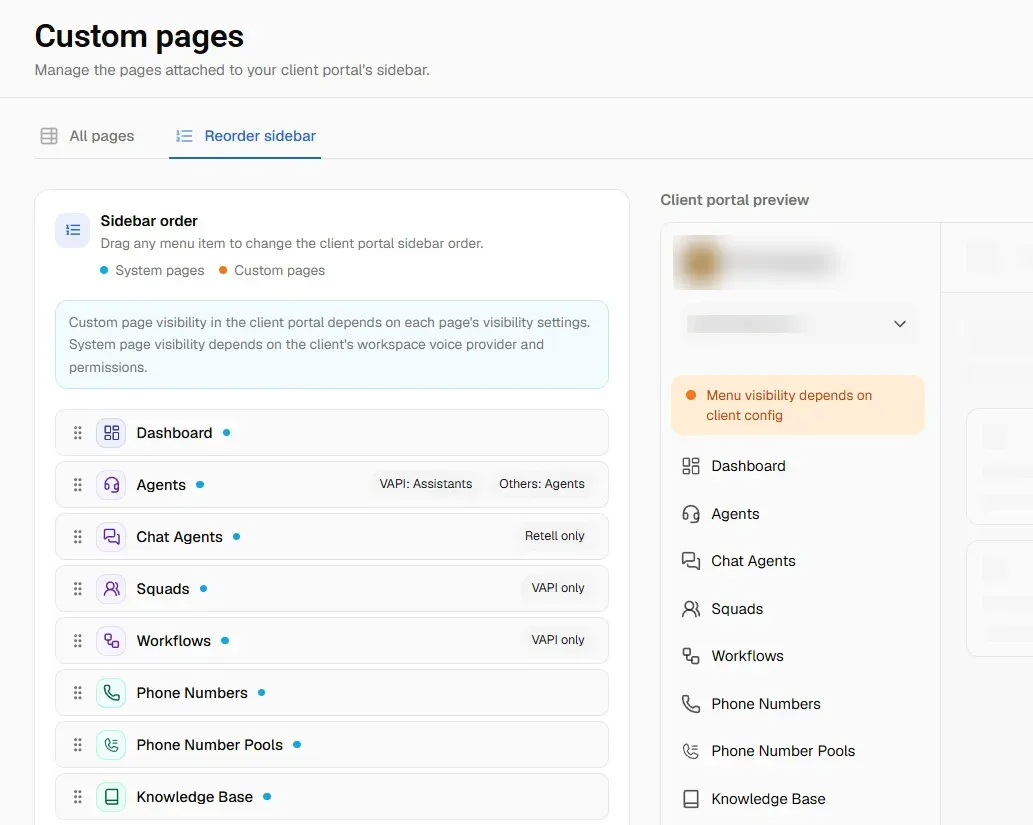
Portal links: quick links to areas like Dashboard, Assistants, Chat assistant, Campaigns, Phone numbers, Knowledge base, Tools, Call logs, Workflows, Squads, and Phone number pool.
Other custom pages: each of your other custom pages appears as a link variable (by its menu label), so you can link between custom pages without pasting raw URLs.

Links respect client access: if a client doesn’t have access to a section or page, that link is not shown for them.
March 17th, 2026
New

If your widget is powered by ElevenLabs, you can now offer a language switcher so end-users can interact with your assistant in more than one language.
The widget continues to have a default language (your primary language).
If the ElevenLabs agent supports more languages, the widget can also show additional supported languages.
End-users can switch languages in the widget UI (where enabled) and keep the conversation in the chosen language.
In the widget builder, enable “Allow visitors to pick their language” for your ElevenLabs widget.
This turns on a language dropdown (with flags) inside the widget UI.
Visitors can switch between the agent’s default language and any additional languages available on that agent.

Voice widget: language options are available for the voice assistant when configured with ElevenLabs.
Chat widget: language options are available for the chat assistant when configured with ElevenLabs.

The language dropdown only shows languages that are actually available on your selected ElevenLabs agent.
If no additional languages are available, the widget simply uses the default language (no change in behavior).
January 22nd, 2026
New
Improved

Structured Outputs is the new way of capturing data from VAPI calls. Our system uses structured outputs to capture lead information from calls. Structured data is still supported for backward compatibility.
January 20th, 2026
New
Improved

Text Messaging During Voice Calls
Users can now send text messages while on an active voice call
Perfect for situations where speaking isn't possible or convenient
Messages appear in real-time alongside the voice conversation

Real-Time Transcript Display
View live transcription of the entire conversation during voice calls
See both user and agent messages as they happen
Helps users follow along and reference what was said

Improved Connection Status
Clear visual indicator showing when the voice call is connected
Easy-to-access end call button in the connection banner
Customizable connection status text and colors

Customizable Text Labels
Customize placeholder text for the message input field
Customize send button text
Customize empty transcript messages
All text labels can be translated and localized

Changed
Animation styles are automatically hidden when transcript is enabled to provide more screen space for messages
Voice calls always start with voice mode (never text-only) for a consistent experience
Notes
These features are available only for ElevenLabs voice widgets
All features are optional and can be enabled/disabled in the widget configuration
Existing widgets continue to work as before - no changes required